> For the complete documentation index, see [llms.txt](https://help.twinr.dev/llms.txt). Markdown versions of documentation pages are available by appending `.md` to page URLs; this page is available as [Markdown](https://help.twinr.dev/plugins/sharetribe/listing-push-notification.md).
# Listing Push Notification
Listing-related push notifications notify users when important **listing activities** occur in your Sharetribe marketplace.
These notifications help keep users engaged and informed about changes without requiring them to open the app.
### What Are Listing Push Notifications?
Listing push notifications are sent when events related to listings occur, such as:
* Listing created
* Listing updated
* Listing published
* Listing deleted
Each event triggers a **one-time push notification** to the relevant user’s mobile device.
### 📌 Important Notes
* **Each push notification must be triggered from one Zap**
* You must create **two separate Zaps**:
* **Zap 1:** Listing Events
* **Zap 2:** Transaction Events
* Each Zap must send data to **Twinr’s Push Notification Webhook Endpoint**
* Both Zaps work independently and must be published separately
## Create Zap for Listing Events
Create this Zap **only if you want push notifications for listing-related events**.
### Step 1: Create a New Zap
1. Log in to **Zapier**
2. Click **Create Zap**
### Step 2: Select Sharetribe as Trigger App
1. Choose **Sharetribe**
2. Click **Continue**
3. Connect your Sharetribe account
4. Select the correct marketplace
### Step 3: Choose Trigger Event (Listing Events)
1. Select **Listing Events**
2. Click **Continue**
3. Choose an **Event Type**, such as:
* Listing created
* Listing updated
* Listing deleted
* Listing published
4. Test the trigger and continue
5. Select Account
6. Enter Client ID and Client Secret (Available in Sharetribe Application)
### Step 4: (Optional) Format Date/Time
1. Click "Action" or "+"
2. Add **Formatter by Zapier**
1. Select **Date / Time**
2. Go to **Configure**
3. Format the timestamp if required
4. Continue
### Step 5: Send Push Notification to Twinr
1. Add **Webhooks by Zapier**
2. Choose **any HTTP method**:
* POST
* GET
* PUT
* Custom Request
3. Click "Continue"
4. Click **Method** and Select **POST**
5. Enter the **Twinr Push Notification Webhook Endpoint** in **URL** field
{% hint style="success" %}
[https://msengageapi.twinr.dev/v3/send-one-time-notifications](https://msengageapi-stage.twinr.dev/v3/send-one-time-notifications)
{% endhint %}
Each field in the request body controls how and where the push notification is delivered.
| Field | Description |
| ------------------- | ----------------------------------------------------------------------------------------------------------------------------------------------------------------------------------------------------------------------------------------------------------------------------------------------------------------------------------------------------------------------------------------------------------------------------- |
| `app_id` |
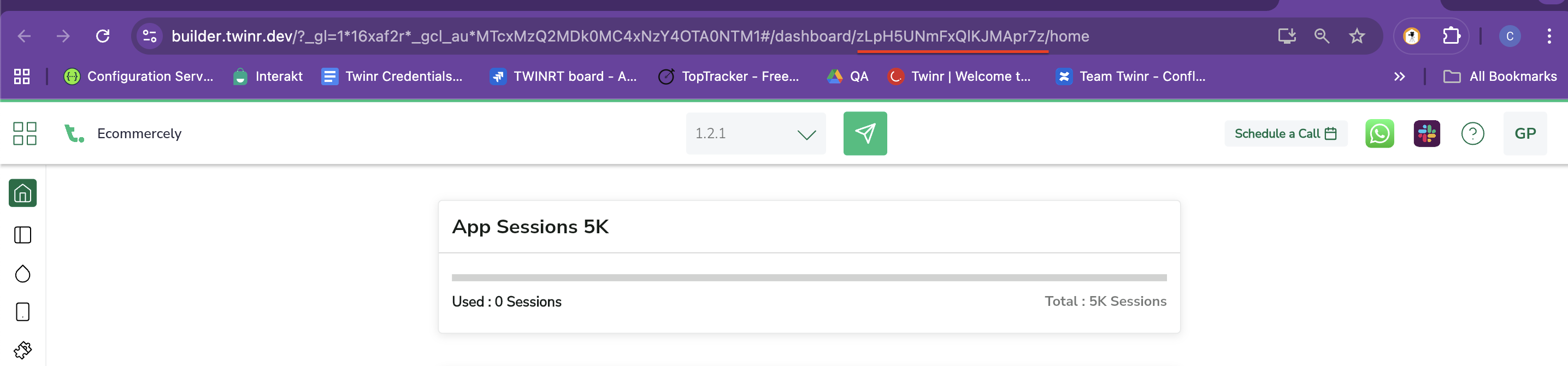
Unique App ID of your Twinr application. This ensures the notification is sent to the correct app. (You will find App ID from URL)
|
| `push_title` | Title text shown at the top of the push notification. |
| `push_message` | Main message content displayed in the notification. |
| `push_image` | Optional image URL to display in the notification (if supported by the platform). |
| `is_android` | Set to `true` to send the notification to Android devices. |
| `is_ios` | Set to `true` to send the notification to iOS devices. |
| `segment_id` | Target a specific user segment (optional). |
| `click_action.type` | Defines what happens when the user taps the notification (for example, open a screen or deep link). |
6. Map required fields (listing data + `app_id`)
OR
6. Enter API Request body in the **Data** field if you choose "Custom Request"
7. Make **Data Pass -Through?** - **False**
8. Click **Continue**
9. Test the request
### Step 6: Publish Zap
* Click **Publish**
* Your Listing Events push notification is now live