> For the complete documentation index, see [llms.txt](https://help.twinr.dev/llms.txt). Markdown versions of documentation pages are available by appending `.md` to page URLs; this page is available as [Markdown](https://help.twinr.dev/rest-api-integration/rest-api-configuration.md).
# REST API Configuration
#### Accessing REST API Configuration
1. Log in to the **Twinr Builder Portal**
2. From the **left navigation menu**, select **REST API** (or **API Calls**)
3. The REST API page opens, showing:
* A list of all created APIs
* Options to **Create**, **Edit**, or **Delete** APIs
#### Creating a New REST API
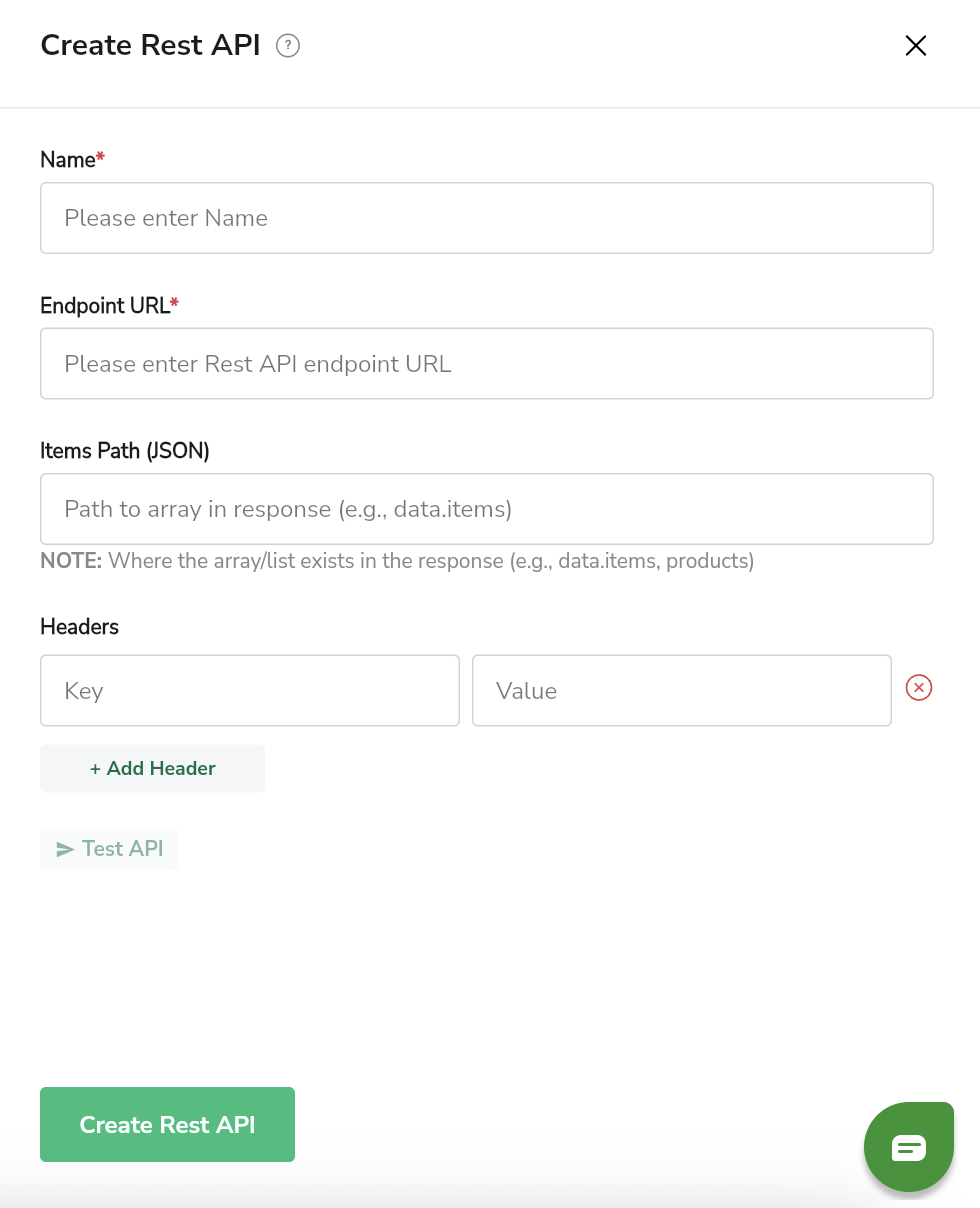
1. Click **Create API Call**
2. Fill in the required details:
| FIELD | DESCRIPTION |
| ----------------- | --------------------------------------------------------------------------------------------------------------------------------------------------------------------------------------------------------------------------------------------------------------------------------------------------------------------------------------------------------- |
| Name | Enter a readable name to identify this API inside Twinr (used while selecting APIs in native screens). |
| Endpoint URL | The REST API endpoint from which Twinr will fetch dynamic data. |
| Items Path (JSON) |
The JSON path pointing to the array/list in the API response that should be rendered in native elements (e.g., data.items, products). 👉 Refer to the Items Path Examples below to understand how to set this value based on your API response structure.
|
| Headers | Optional request headers required by the API, such as authorization tokens or custom keys. |
| +Add Header | Add multiple headers if your API requires more than one key-value pair. |
3. Click **Test API**
* The response preview helps validate the endpoint and structure
4. Click **Create API Call**
Once saved, the API becomes available for use in native screens.
{% tabs fullWidth="false" %}
{% tab title="ITEM PATH - EXAMPLE" %}
The **Items Path** tells Twinr **where the list of items is located** in your API response.
Think of it as **“the address of the list”** inside the response.
***
#### Example 1: List is at the top level
If your API response looks like this:
```
[
{ "id": 1, "name": "Product A"},
{ "id": 2, "name": "Product B"}
]
```
✅ **Items Path:**\
Leave it **empty**
👉 Because the list is already at the top.
***
#### Example 2: List is inside `data`
```
{ "data": [
{ "id": 1, "title": "Blog Post 1" },
{ "id": 2, "title": "Blog Post 2" }
]
}
```
✅ **Items Path:**
```
data
```
👉 Because the list is inside the `data` field.
***
#### Example 3: List is inside `data → products`
```
{ "data": {
"id": "jajs",
"products": [
{ "id": 1 },
{ "id": 2 }
]
}
}
```
✅ **Items Path:**
```
data.products
```
👉 Because the list is inside `products`, which is inside `data`.
***
#### Quick Tip 💡
* If you see **`[` and `]`**, that means it’s a list
* Just enter the **path to reach that list**
* Use **dots (`.`)** to go deeper
* If nothing entered in Item Path field - Reponse will be null
{% endtab %}
{% endtabs %}
#### Managing Existing APIs
From the REST API list page, you can:
* **Edit API** – Update headers, endpoint, or response path
* **Delete API** – Remove unused APIs