> For the complete documentation index, see [llms.txt](https://help.twinr.dev/llms.txt). Markdown versions of documentation pages are available by appending `.md` to page URLs; this page is available as [Markdown](https://help.twinr.dev/plugins/sharetribe/sharetribe-connection.md).
# Sharetribe Connection
This guide explains how to log in to Sharetribe, create a marketplace, generate API credentials, and connect Sharetribe with Twinr.
### Step 1: Log in to Sharetribe
1. Visit the [Sharetribe](https://www.sharetribe.com/) website and sign in with your account
2. If you do not have an account, create one using your email address
3. Once logged in, you will land in the **Sharetribe Console**
### Step 2: Generate Client ID & Client Secret in Sharetribe
Twinr requires API credentials to connect securely with Sharetribe.
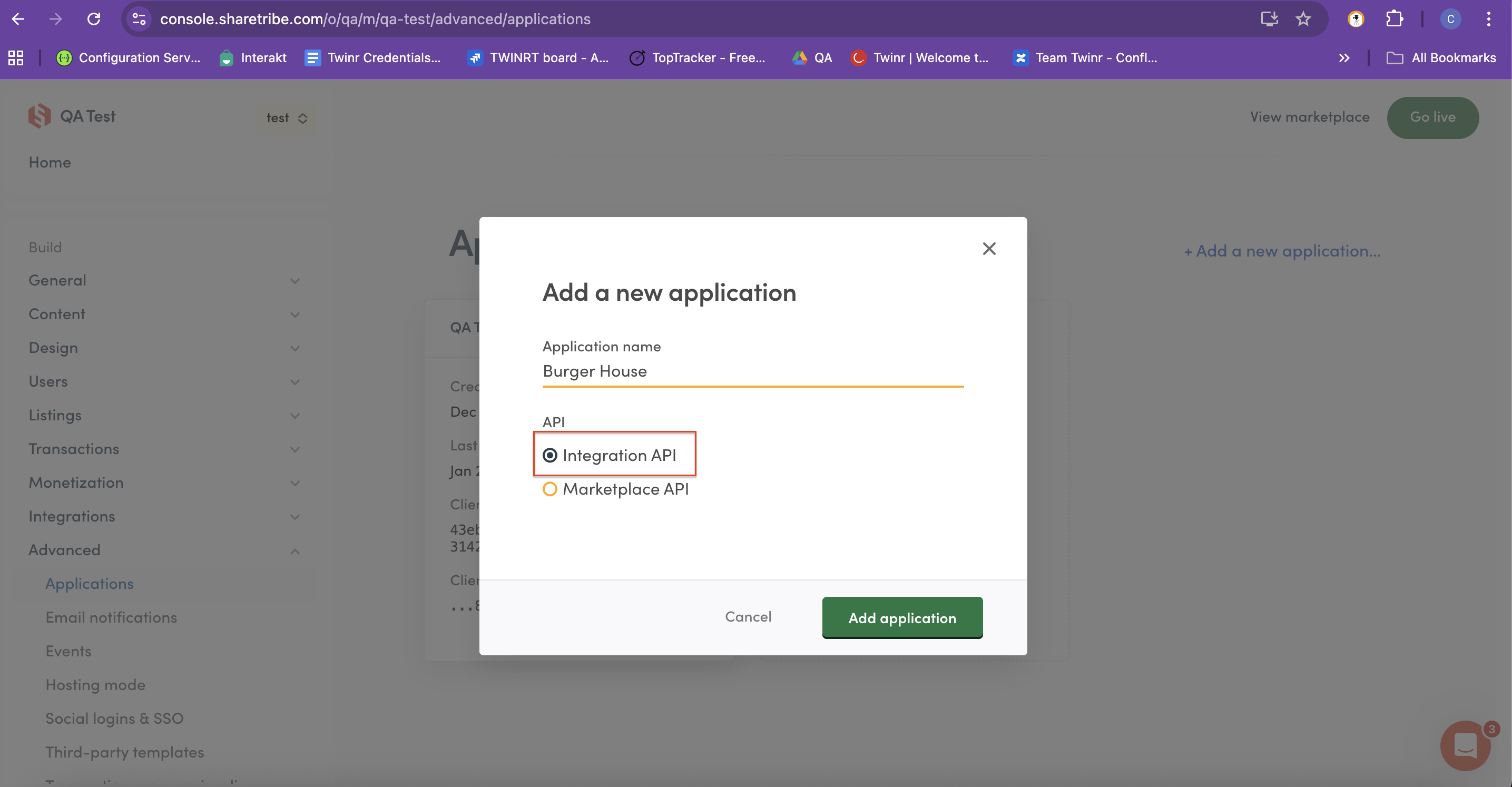
1. In the **Sharetribe Console**, select your marketplace
2. Navigate to:\
**Advanced → Applications**
3. Click **Create New Application**
3. Sharetribe will generate:
* **Client ID**
* **Client Secret**
4. Copy and save these credentials securely
> 🔐 Do not share these credentials publicly.
### Step 3: Connect Sharetribe Plugin in Twinr
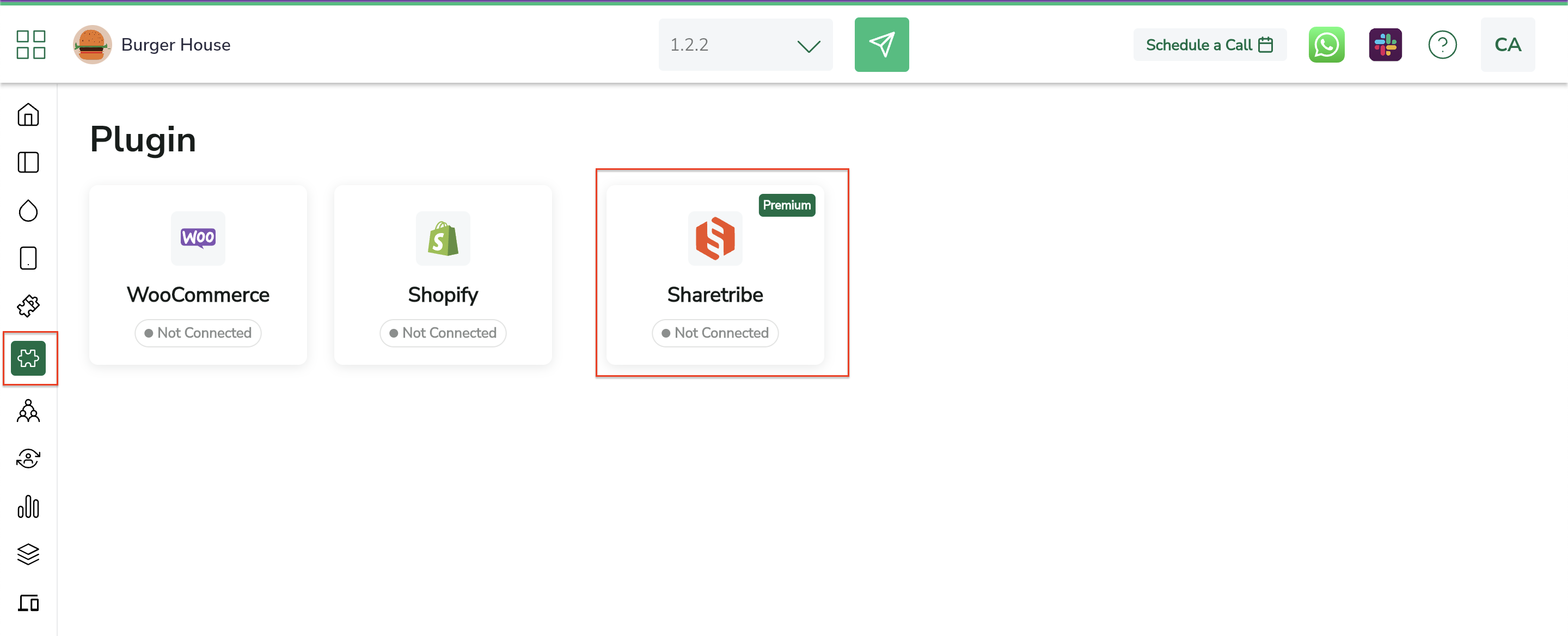
1. Log in to the **Twinr Builder Portal**
2. Go to **Plugins**
3. Locate **Sharetribe** (marked with a **Premium** badge)
4. Click the option
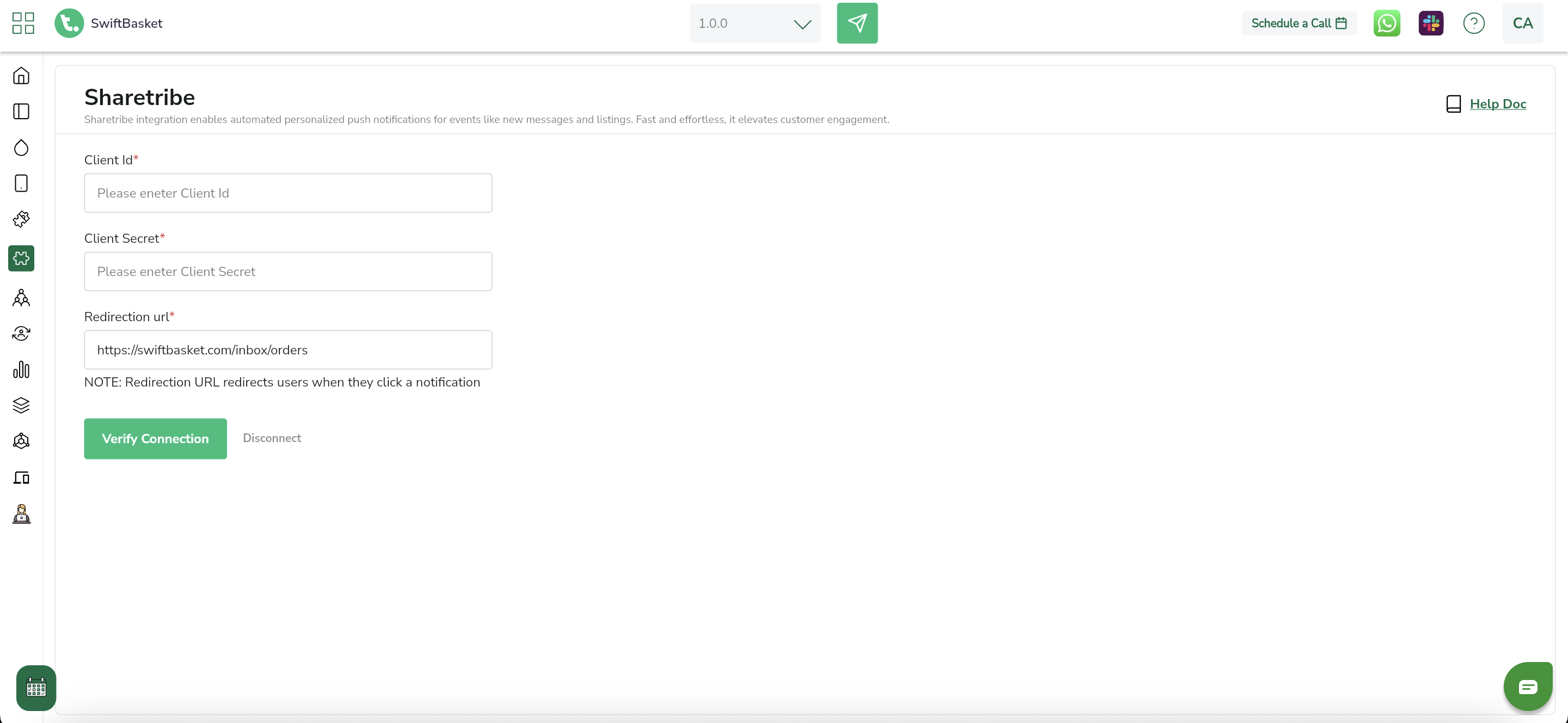
5. Enter Client ID and Client Secret
6. Enter Inbox URL (You can update URL with your Marketplace inbox URL)
7. Click **Verify Connection**
After the Sharetribe connection is completed, the following capability becomes available:
#### Inbox Push Notifications
* Users can successfully receive **push notifications for Sharetribe inbox messages**.
* Whenever a new message is received in the Sharetribe inbox, a push notification is sent to the user’s mobile device.
* Tapping the notification opens the app and navigates the user directly to the relevant conversation screen.
### Important Setup Notes
Before enabling Sharetribe push notifications, please review the following requirements:
#### 🔔 Firebase Requirement
Firebase must be enabled for your app to deliver push notifications on Android and iOS.
{% hint style="info" %}
👉 Refer to the [**Firebase Setup Help Doc**](/push/firebase-push-notification.md) for complete configuration steps.
{% endhint %}
***
#### 🔐 Login Requirement
Push notifications are delivered only after the user logs in at least once.
* Login must be enabled
* Login Script must be added in **Twinr Builder → Screens → Login**
{% hint style="info" %}
👉 Refer to the [**Login Setup Help Doc**](/screens/login/login-page.md) for instructions on enabling Login and adding the Login Script.
{% endhint %}
> 📌 These configurations are mandatory for all Sharetribe push notification types (Inbox, Listing, and Transaction).