> For the complete documentation index, see [llms.txt](https://help.twinr.dev/llms.txt). Markdown versions of documentation pages are available by appending `.md` to page URLs; this page is available as [Markdown](https://help.twinr.dev/navigation-bar-buttons/linker-button.md).
# Linker
Opens a page you choose.
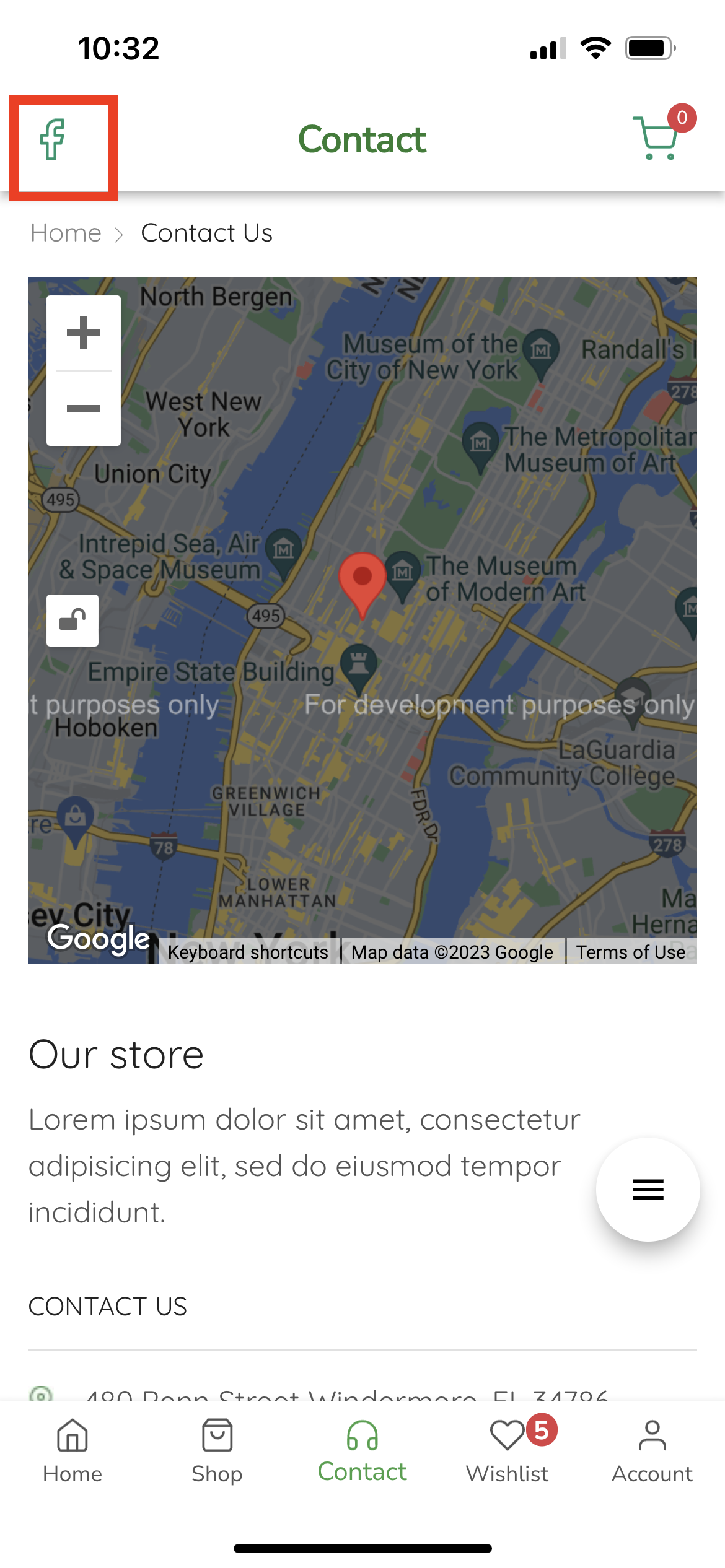
A Linker button opens a page. Tap it and the app goes straight there — your contact page, a sale collection, your Instagram.
It is the simplest button type, and usually the right one when you just want somewhere to be one tap away.
## Add one
On the screen's **Navigation bar** tab, click **+ Add** beside **Left side buttons** or **Right side buttons**, then choose **Linker**.
| Field | What to enter |
| ----------------------------------------- | ------------------------------------------------------------- |
| **Button Icon**\* | Choose a supplied icon or upload a `.png`, `.jpg` or `.jpeg`. |
| **URL**\* | The page to open. Must start with `https://`. |
| **Visibility → User** | **All**, logged-in only, or logged-out only. |
| **Analytics → Enable Firebase Analytics** | Premium. Records an event on each tap. |
Click **Add**, then **Save as draft**.
## Where the page opens
A URL on your own site opens inside the app, as another screen.
A URL somewhere else — Instagram, a help desk, a booking tool — follows your external link rules, which decide whether it opens inside the app or hands off to the phone's browser. See [External URL Handling](/screen-customization/external-url-handling.md).
{% hint style="info" %}
For social links, opening outside the app is usually better: the customer's phone will switch to the Instagram app, where they are already signed in, rather than showing them a logged-out web page.
{% endhint %}
## Visibility
Use **Visibility** when a link only makes sense for some customers. A *My orders* linker is no use to someone who has not signed in; set it to logged-in users and it stays hidden until they do.
This needs your app to know who is signed in — see [Enable Login Screen](/screens/login.md).
{% hint style="warning" %}
A Linker points at a fixed address. If you reorganise your site and that URL stops working, the button goes with it — the app has no way to know. Check your linker URLs whenever you change your site structure.
{% endhint %}